
本博文将引导您安装和配置Harbor私有镜像仓库。安装前,请确保您已安装Docker和Docker Compose。
前置环境
需要安装docker和docker-compose
下载Harbor
Harbor的最新版本可以从GitHub下载。这里以2.9.4版本为例:
下载地址:https://github.com/goharbor/harbor/releases/tag/v2.9.4
wget下载:
root@main:/opt/apps# wget https://mirror.ghproxy.com/https://github.com/goharbor/harbor/releases/download/v2.9.4/harbor-offline-installer-v2.9.4.tgz
--2024-06-06 03:21:23--  https://mirror.ghproxy.com/https://github.com/goharbor/harbor/releases/download/v2.9.4/harbor-offline-installer-v2.9.4.tgz
Resolving mirror.ghproxy.com (mirror.ghproxy.com)... 140.83.35.89
Connecting to mirror.ghproxy.com (mirror.ghproxy.com)|140.83.35.89|:443... connected.
HTTP request sent, awaiting response... 200 OK
Length: 643806736 (614M) [application/octet-stream]
Saving to: ‘harbor-offline-installer-v2.9.4.tgz’harbor-offline-installer-v2.9.4.tgz                                 100%[=================================================================================================================================================================>] 613.98M  6.40MB/s    in 1m 40s  2024-06-06 03:23:05 (6.14 MB/s) - ‘harbor-offline-installer-v2.9.4.tgz’ saved [643806736/643806736]=
解压安装包
tar xf harbor-offline-installer-v2.9.4.tgz
cd harbor
cp harbor.yml.tmpl harbor.yml
配置Harbor
使用编辑器打开harbor.yml文件,修改以下配置:
root@main:/opt/apps/harbor# vim harbor.yml# Configuration file of Harbor# The IP address or hostname to access admin UI and registry service.
# DO NOT use localhost or 127.0.0.1, because Harbor needs to be accessed by external clients.
hostname: reg.mydomain.com# http related config
http:# port for http, default is 80. If https enabled, this port will redirect to https portport: 80# https related config
https:# https port for harbor, default is 443port: 443# The path of cert and key files for nginxcertificate: /your/certificate/pathprivate_key: /your/private/key/path# # Uncomment following will enable tls communication between all harbor components
# internal_tls:
#   # set enabled to true means internal tls is enabled
#   enabled: true
#   # put your cert and key files on dir
#   dir: /etc/harbor/tls/internal
#   # enable strong ssl ciphers (default: false)
#   strong_ssl_ciphers: false# Uncomment external_url if you want to enable external proxy
# And when it enabled the hostname will no longer used
# external_url: https://reg.mydomain.com:8433# The initial password of Harbor admin
# It only works in first time to install harbor
# Remember Change the admin password from UI after launching Harbor.
harbor_admin_password: Harbor12345# Harbor DB configuration
database:# The password for the root user of Harbor DB. Change this before any production use.password: root123# The maximum number of connections in the idle connection pool. If it <=0, no idle connections are retained.max_idle_conns: 100# The maximum number of open connections to the database. If it <= 0, then there is no limit on the number of open connections.# Note: the default number of connections is 1024 for postgres of harbor.max_open_conns: 900# The maximum amount of time a connection may be reused. Expired connections may be closed lazily before reuse. If it <= 0, connections are not closed due to a connection's age.# The value is a duration string. A duration string is a possibly signed sequence of decimal numbers, each with optional fraction and a unit suffix, such as "300ms", "-1.5h" or "2h45m". Valid time units are "ns", "us" (or "µs"), "ms", "s", "m", "h".conn_max_lifetime: 5m# The maximum amount of time a connection may be idle. Expired connections may be closed lazily before reuse. If it <= 0, connections are not closed due to a connection's idle time.# The value is a duration string. A duration string is a possibly signed sequence of decimal numbers, each with optional fraction and a unit suffix, such as "300ms", "-1.5h" or "2h45m". Valid time units are "ns", "us" (or "µs"), "ms", "s", "m", "h".conn_max_idle_time: 0# The default data volume
data_volume: /data
修改:
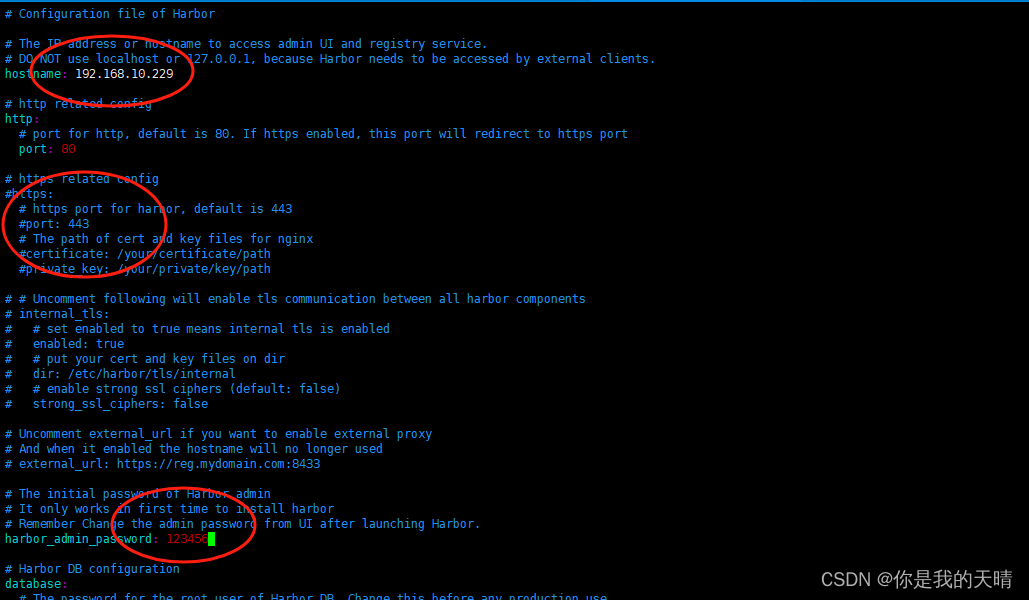
hostname:192.168.10.229 我这里修改成我的ip
如果不需要https就把他和下面的都注释掉,需要的话就配置证书地址,参考:
可以设置harbor_admin_password
其他按需修改
我的修改完成是这样
安装Harbor
完成配置后,运行安装脚本:
./install.sh
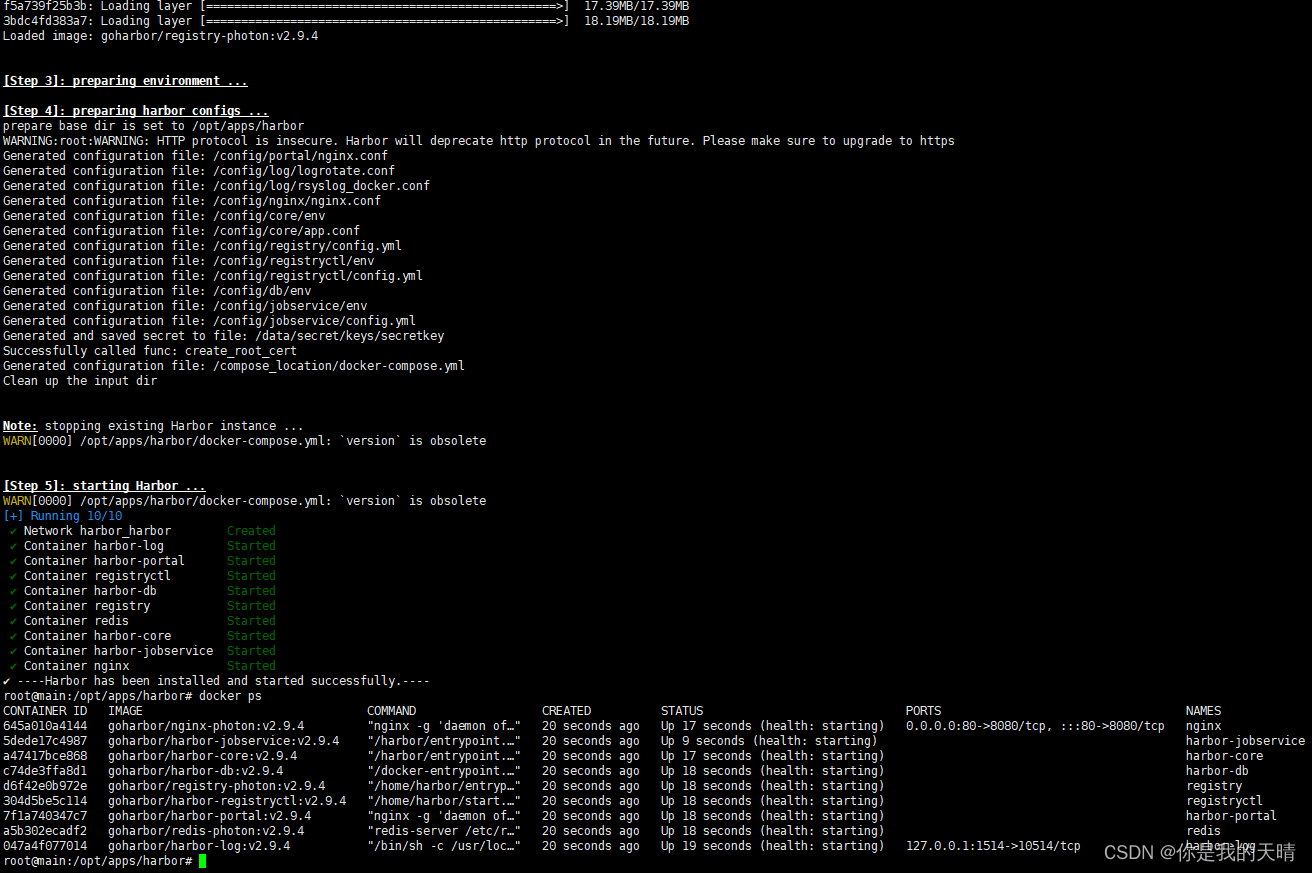
安装成功 您将看到如下界面:
访问Harbor
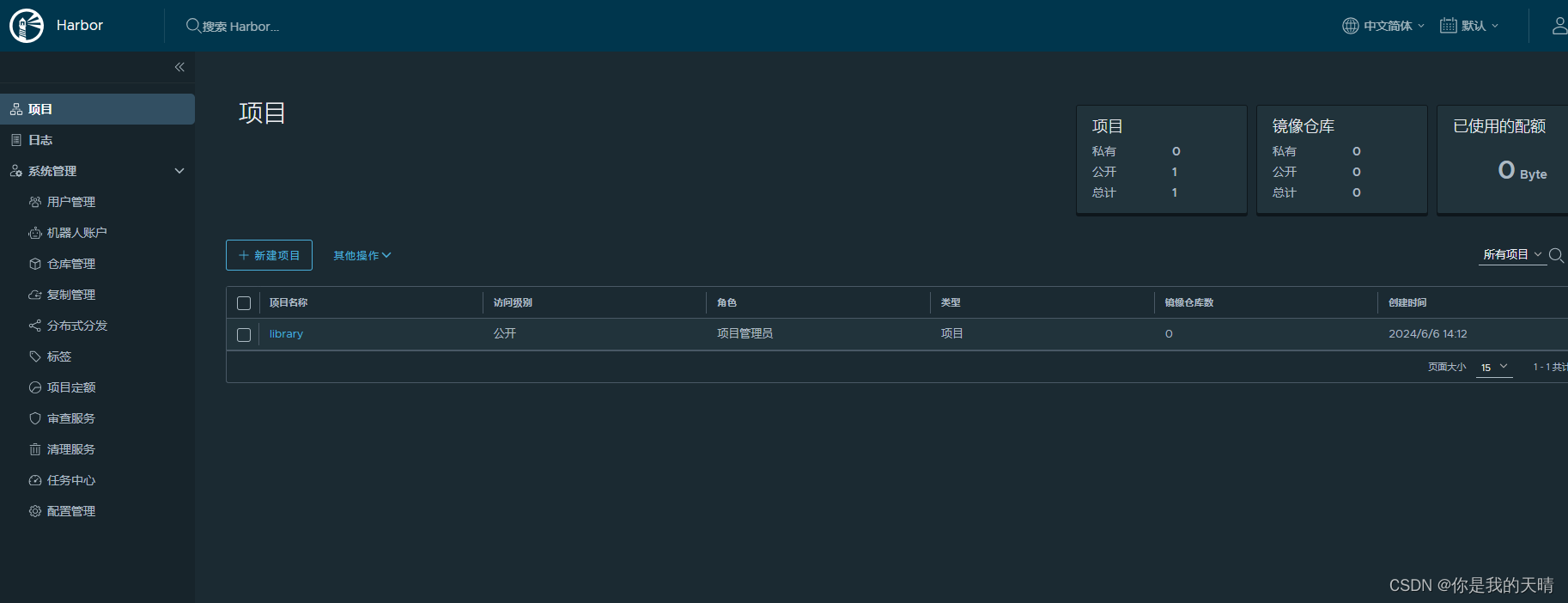
在浏览器中访问配置的hostname,例如:http://192.168.10.229。使用您在配置文件中设置的admin密码登录Harbor的web界面
通过以上步骤,您应该可以成功安装和配置Harbor私有镜像仓库。